I spend a meaningful portion of my week helping teams operationalize AI workflows, and one theme comes up over and over: how to share context files and skills seamlessly across devices and with colleagues. Hosting Claude Code office hours has only reinforced it—sharing context and skills is the single biggest blocker to reliable, repeatable outcomes.
I hear from leaders driving AI adoption who have built robust, high-signal context systems and carefully crafted skills. Their challenge isn’t creating value—it’s distributing it. They need a way to make the same trusted workflows available to teammates and to keep everything in sync across laptops, desktops, and phones.
I hit the same wall myself. I work across multiple devices (a Mac Mini for day-to-day, a MacBook Air on the road, and an iPhone) and I collaborate with a full-time admin. I wanted my context and skills to be consistent everywhere, for both of us. In this piece, I’ll share my setup—what I store where, how I share it across devices and with my team, the trade-offs of each option, and how I keep everything current. We’ll cover four different syncing services: git/GitHub, Obsidian Sync, Dropbox and iCloud.
If you’re new to this series, this is the eighth installment. Earlier pieces provide foundational context: Claude Code: What It Is, How It's Different, and Why Non-Technical People Should Use It; Stop Repeating Yourself: Give Claude Code a Memory; How to Use Claude Code Safely: A Non-Technical Guide to Managing Risk; How to Choose Which Tasks to Automate with AI (+50 Real Examples); How to Build AI Workflows with Claude Code (Even If You're Not Technical); How to Use Claude Code: A Guide to Slash Commands, Agents, Skills, and Plug-ins; and Context Rot: Why AI Gets Worse the Longer You Chat (And How to Fix It).
The day it really hit me was right before my interview with Claire Vo on How I AI. I was staying in an AirBnB with only my laptop, and I planned to demo my /today command along with my context file structure. Minutes before the session, I realized the latest version of my /today command wasn’t on that machine. I was able to remote into my Mac Mini and grab it—crisis averted—but it was a wake-up call. I needed a more reliable, shareable approach for syncing context and skills across devices and with my admin.
I started by testing the tools I already used—Dropbox, iCloud, and GitHub—to see what might fit. Each got me partway there, but each also introduced friction that mattered in daily use.
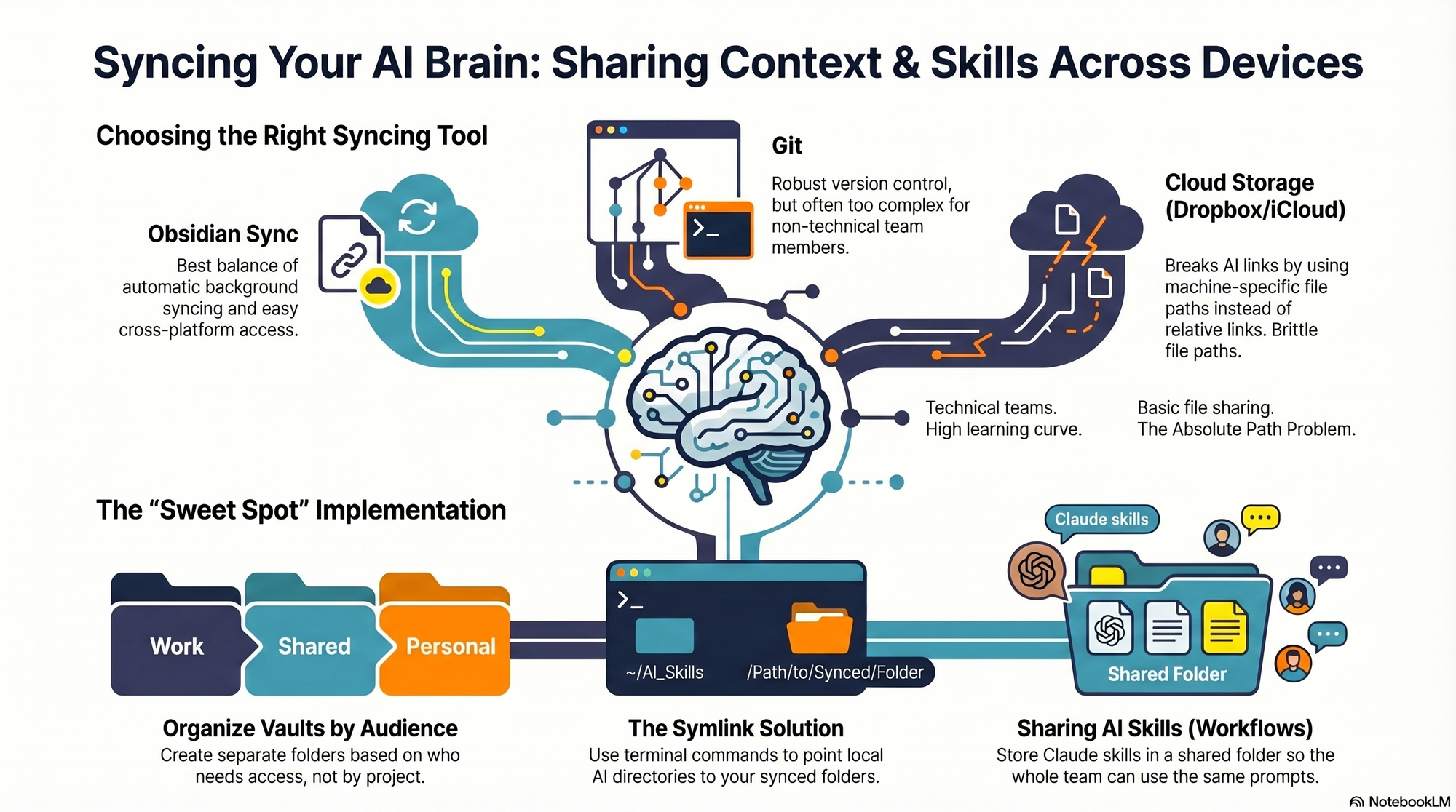
First, absolute file paths don’t travel well. I began with Dropbox but quickly ran into cross-linking headaches. Good context systems rely on rich interlinking—index files point to other context files, and those context files link to each other. When Claude creates a link from one context file to another, it tends to use the full file path: /Users/ttorres/Library/CloudStorage/Dropbox. That worked on my Mac Mini and MacBook (same user name), but not on my phone—and not for my admin. I tried to force relative links (~/Dropbox), but couldn’t get Claude to do it consistently, which led to broken links. This isn’t unique to Dropbox; Claude prefers full paths because they’re reliable on a single machine, but they’re brittle across devices and useless when sharing with colleagues. Claude is trained to use relative file paths when working within a git repository, but I struggled to get it to work reliably in Dropbox.
Second, skills live in a user directory by default. By default, skills live in ~/.claude/skills. Most sync services aren’t designed to share your ~/ folder. iCloud is the exception, but then you’re limited to Apple devices—no Windows or Android. There is a workaround: set up a claude folder in Dropbox and create a symlink from ~/.claude to your synced claude folder, so all skills, commands, and settings live in Dropbox. Then, on each device (yours or a colleague’s), you set up a symlink to that folder so Claude can find the files. This works, but I was running into another limitation that made Dropbox a poor fit.
Third, Obsidian on iOS doesn’t sync cleanly with Dropbox. I rely on Obsidian’s file browser alongside my notes to navigate context quickly. Storing vaults in Dropbox gave me parity across my Mac Mini and MacBook Air, but I couldn’t get the iOS Obsidian app to reliably load my Dropbox vaults. That friction was a dealbreaker for on-the-go work.
At that point, I explored git/GitHub. GitHub is cloud storage for git repositories. A git repository is a folder of shared files used so engineers can collaborate on the same code base. Each person clones a local copy, works locally, then pushes changes back to the hosted repo on GitHub; others pull to update. Git’s merge and conflict tooling is excellent. Git is the powerhouse of file syncing and version control. It easily handles syncing context and skills, Claude behaves better with relative links in a git repo, and I can open the repo in my IDE with a clean file browser. For me, that checked all the boxes—until I factored in my admin. Git has a learning curve, requires manual pull/push hygiene, and often assumes an IDE workflow. That overhead was too heavy for a non-technical collaborator.
The turning point was Obsidian Sync. A colleague suggested it, and it ended up being the sweet spot. Obsidian is a markdown reader; files are stored locally in a normal folder you can open in Finder or File Explorer. There’s no proprietary format—you can read files with any text editor, and Claude can access them via bash commands. Obsidian Sync is simpler than git: open a note and it syncs in the background. I can access the same vaults across my Mac Mini, MacBook Air, and iPhone, and I can share a vault with my admin so we can both create and access notes.
Because we’re in different time zones and rarely edit the same note simultaneously, limited conflict handling hasn’t been an issue. Obsidian’s internal link notation also means one note can link to another and those links just work across devices. Claude can follow these links, so the brittle file path problem disappears.
Here’s where I landed. After a lot of trial and error, I have a setup that works across my devices and for my admin, who uses both a Windows desktop and a Mac laptop. I keep my core context in Obsidian vaults synced with Obsidian Sync, which preserves portability, link integrity, and ease of use. For skills, I avoid scattering files in machine-specific locations and instead centralize what Claude needs to reference in shared, human-readable folders. If you require advanced version control with branching and reviews, git/GitHub is excellent. If your priority is low-friction, cross-device access for non-technical teammates, Obsidian Sync is a practical, reliable choice. And if you must use Dropbox or iCloud, consider symlinks and be vigilant about relative paths—just know that absolute paths won’t travel well.
Inspired by this post on Product Talk.